



Native-quality visuals with high frame rates and low latency for a smooth experience.

Massive high-speed nodes | Continuously stable and available | One-click quick connection
We have more than 10,000 nodes in 184 countries and regions, as well as globally optimized high-speed lines

A global high-speed network built for streaming, with fast video channels that unlock worldwide content for zero-buffering loading.
Download now →Esports-grade network optimization eliminates high ping for a silky-smooth gaming experience.
Native-quality visuals with high frame rates and low latency for a smooth experience.
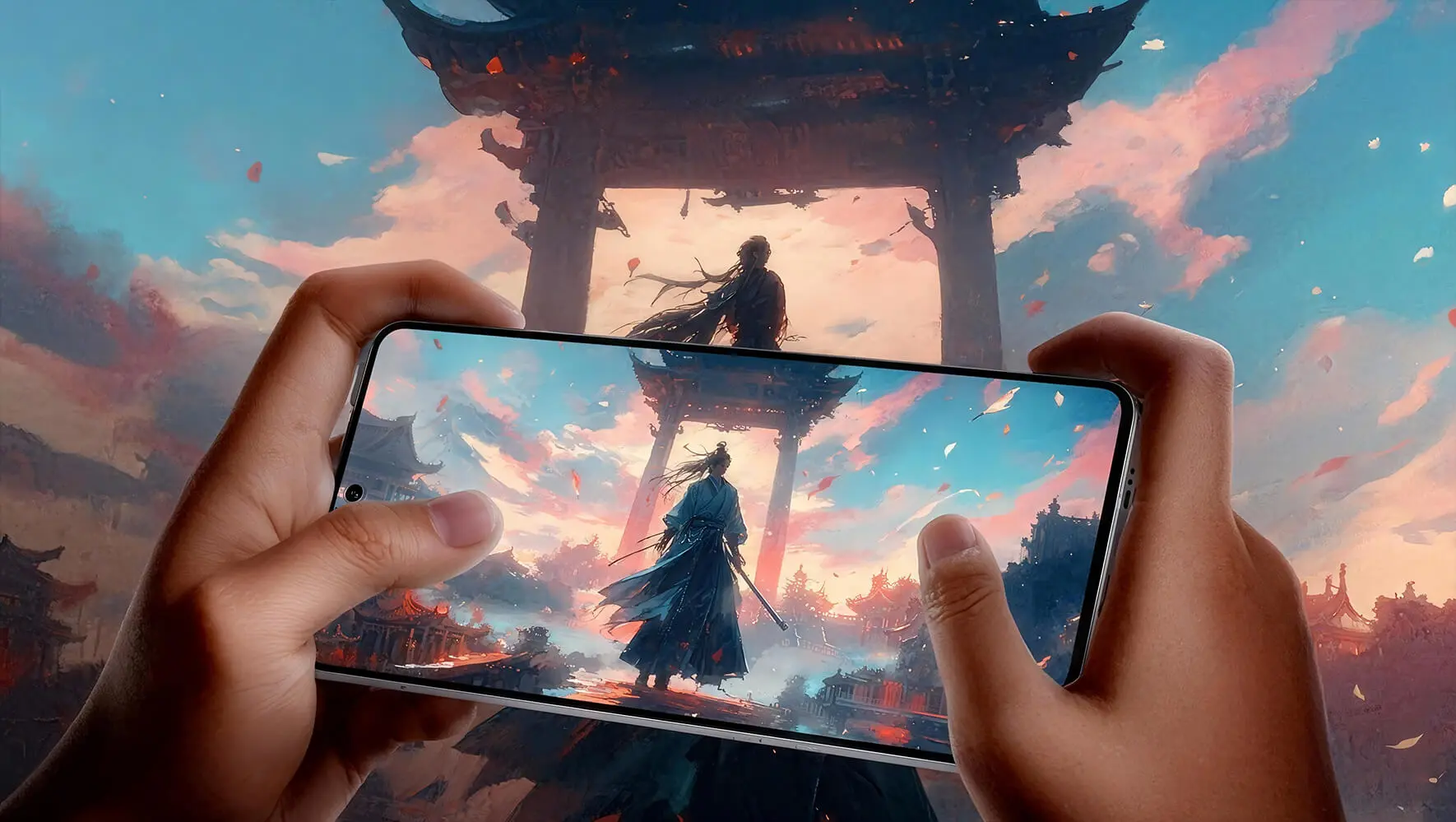
Balances higher image quality, higher frame rates, and a stable connection experience.
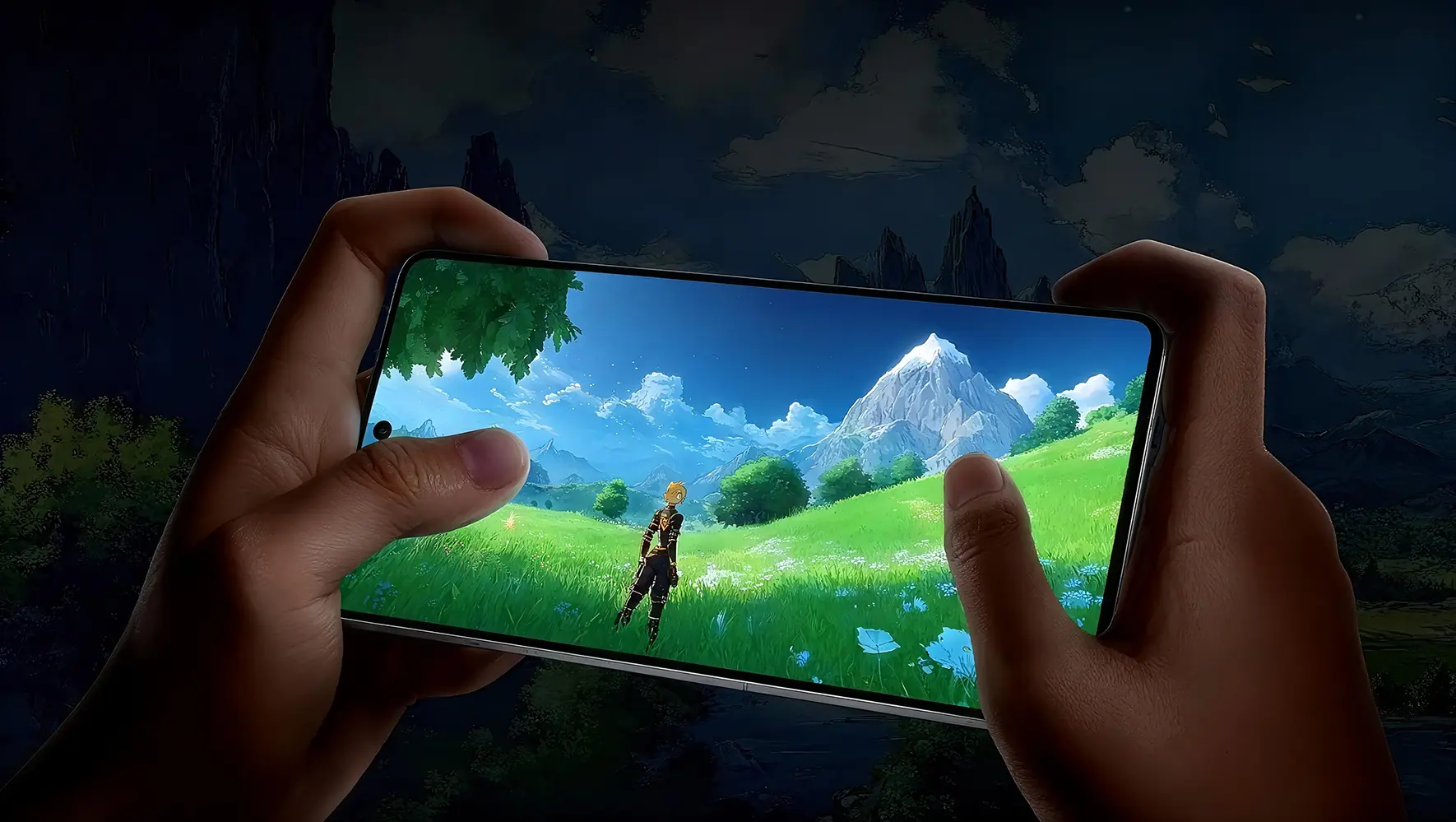
Consistently smooth, detailed, and stable, adapting to different gaming platforms.
Smart connection, device switching, and privacy settings keep common features at a glance.

Choose the most suitable connection method based on the current environment to reduce repeated setup.

Covers common device platforms such as computers, phones, and tablets.

Protects everyday connection processes with clear security mechanisms.

Focuses on common steps so new users can get started quickly.

Provides a continuous and clear user experience across different network environments.
Get started quickly with smart route selection and one-tap connection; when you need to switch devices, simply choose the corresponding client.
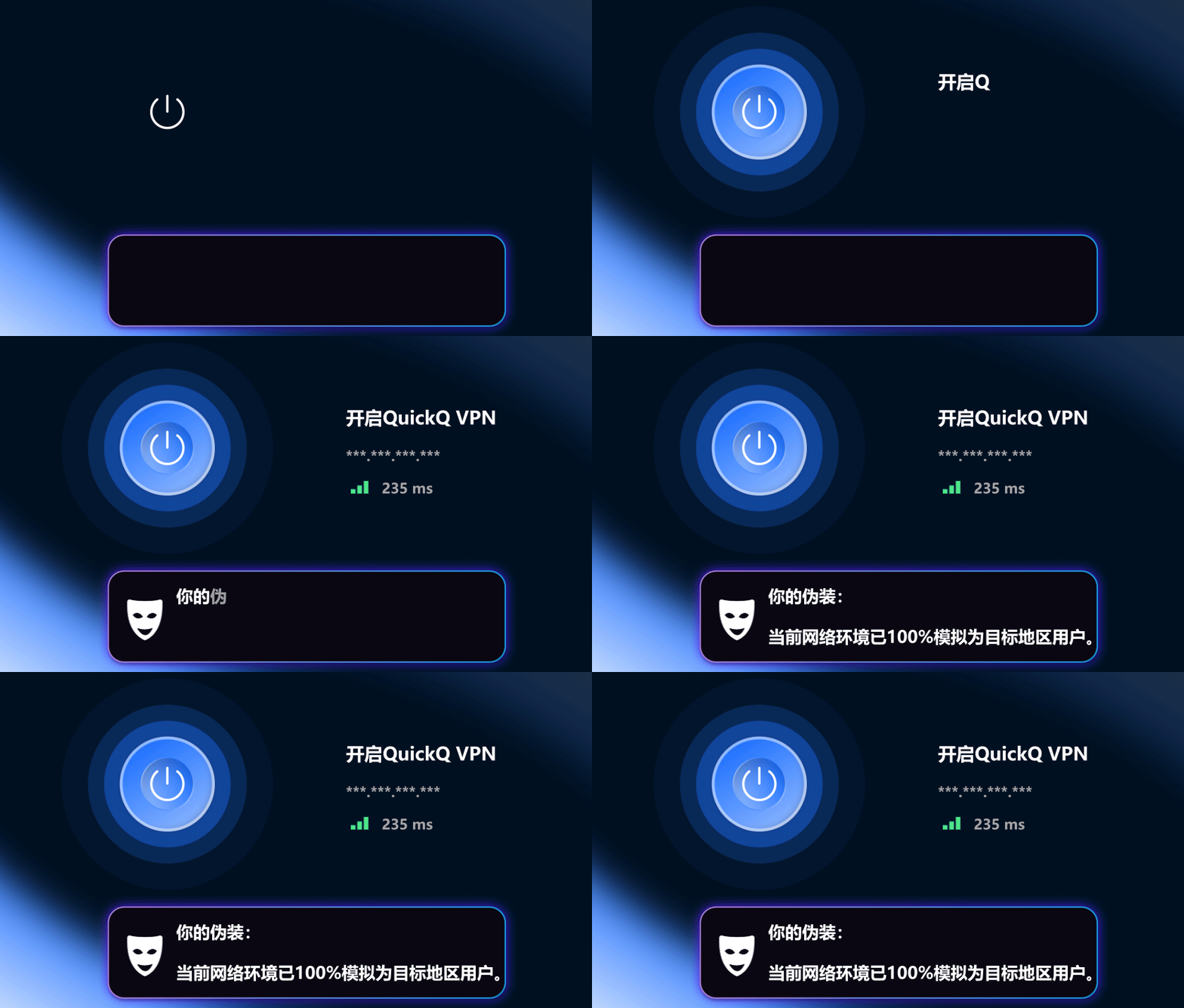
Enjoy a familiar connection experience on computers, phones, and tablets by selecting the client that matches your device's operating system.
Frequently asked questions about device selection, downloading, installation, and getting started.
Supports common platforms including Windows, Android, iOS, macOS, and Linux. Please choose the version that fits your device.
Open the downloaded installer and follow the wizard. On mobile devices, install according to the system prompts.
Open the client, complete the initial setup as prompted by the app, select a server, and you can connect.
Go to the download center on this site and select the version that matches your current device system.
Go to the download center and choose the client and installation entry based on your device system.
Open Download CenterQuickQ VPN is designed for everyday browsing, remote work, and cross-region access, providing clear connection steps and answers to common questions. The following content helps you complete setup faster and understand key usage points on different devices.
Open the client and filter servers by network quality or region. Click to connect—no need to manually enter complex configuration.
The same account can be used across phone, tablet, and computer. Connection statuses do not interfere with each other, making it ideal for everyday multi-device scenarios.
If the connection becomes unstable, try switching servers or reconnecting. In most cases, service can be restored within a short time.
We recommend disconnecting from the current node first, then selecting a node in another region to reconnect. Some websites have restrictions on entry points from different regions, and switching nodes usually improves access.
Please confirm that you have logged in with your account and allow the necessary network permissions according to the system prompts. For the first connection, we recommend choosing a node with a stable signal and waiting until the status shows connected before starting to use it.

 Windows
 Android
 iPhone / iPad
 macOS
 Linux